FrostNote Support
Can’t find what you’re looking for? Jump to a section above or get in touch — we’re happy to help.
Getting Started
Do I need an account to use FrostNote?
Nope. Tap Try it out on the welcome screen and you’re off — no sign-in, no account, no fuss. Your lists live on your device and everything works normally.
A FrostNote account is only needed if you subscribe to Premium (which enables household sharing and server-side sync) or join someone else’s household. The Free and Ad-Free tiers work entirely without one. See Plans & Pricing for the full breakdown.
How do I sign in?
Signing in to FrostNote is only available — and only necessary — if you have an active Premium subscription or are joining someone else’s household via an invite code.
If either of those applies to you, FrostNote supports Sign in with Apple, Sign in with Google, Passkeys, and a traditional email + password account. You can also enter a household invite code to join an existing household.
If you’re on the Free or Ad-Free tier, there’s nothing to sign into — FrostNote runs entirely without a FrostNote account on those tiers.
What’s the difference between the tiers — do any of them require signing in?
Only one does. Here’s the full picture:
- Free (Try it out): Your lists live on your device. No account, no sign-in, FrostNote’s servers have no idea you exist. Ads are shown to support the free tier.
- Ad-Free (one-time purchase): Still no FrostNote account. Ads are removed and your lists sync across your own devices through iCloud (on Apple devices) or your Google account (on Android) — the same way your contacts and photos sync. FrostNote’s servers still aren’t involved.
- Premium (subscription): This is the only tier that involves a FrostNote account and sign-in. Your data moves to FrostNote’s servers, which is what makes real-time household sharing across any device possible.
- Joining a household: If someone invites you to their household, you’ll sign in as part of accepting — you’re joining their Premium subscription.
See Plans & Pricing for pricing details on each tier.
I forgot my password. How do I reset it?
This applies to Premium subscribers (and household members) who created their account with an email and password. On the sign-in screen, tap Forgot Password and follow the steps.
If your account uses Sign in with Apple, Sign in with Google, or a Passkey, use that method instead — there’s no FrostNote password to reset for those.
Can I use more than one sign-in method on the same account?
You can add a Passkey to your account from Account Settings at any time. Switching between Apple, Google, or email as your primary sign-in method isn’t supported today. If you’re unsure which method your account uses, contact us and we’ll help you sort it out.
Using FrostNote
How does aisle sorting work?
Here’s the basic flow:
- Set up your store — go to the Stores tab, add a store, and set up its aisle layout (the names and order of aisles as you walk through).
- Build your list — add items to a list, and assign each item an aisle from your store’s layout.
- FrostNote sorts it — your list groups items by aisle, in the order you’ll walk the store.
The aisle assignments you set on items are yours to keep. For lists you use every week (like a grocery run), just reset the list with one tap when you’re done — all your items and their aisle assignments come right back for next time.
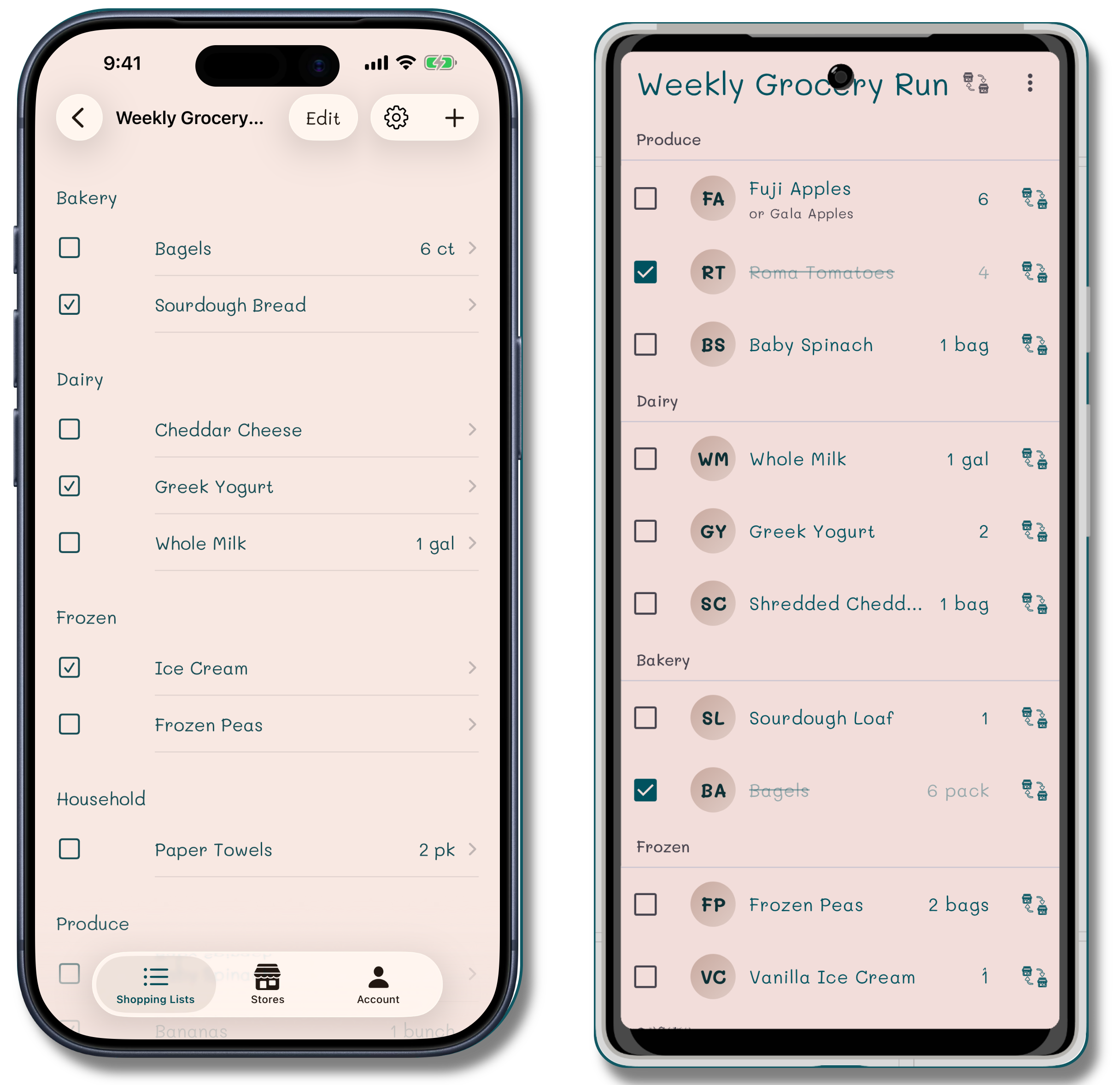
Items grouped by aisle in the order you walk the store.
What is the “backup store” feature for?
You can configure a second store alongside your primary one — both with their own aisle layouts. If you usually shop at one store but occasionally end up at another, you can assign items to aisles in both. Your list will still sort sensibly whichever store you’re at.
For those items that you can only get at one of the stores you go to just leave the aisle blank for that store. Items with no aisle assigned always appear at the bottom of the list. When you switch to the store that carries the item it will shift to displaying in that aisle.
Can I add a backup in case an item is out of stock?
Yes. When editing any item, you can add an alternate. If your first choice isn’t on the shelf, your backup is already on the list and ready to grab.
Does FrostNote work without an internet connection?
Yes — FrostNote is offline-first. You can view and edit your lists with no connection at all. Any changes you make sync automatically the next time you’re online. It does mean you won’t see changes others make until you are back online.
How does household sharing work?
A household owner can invite others using an invite code. Once everyone’s in, the household shares the same stores, and any list can be shared with some, all, or none of the household members — so a gift list can stay private while the grocery run is visible to everyone.
Changes sync between members automatically.
Household sharing requires a Premium subscription. See Plans & Pricing.
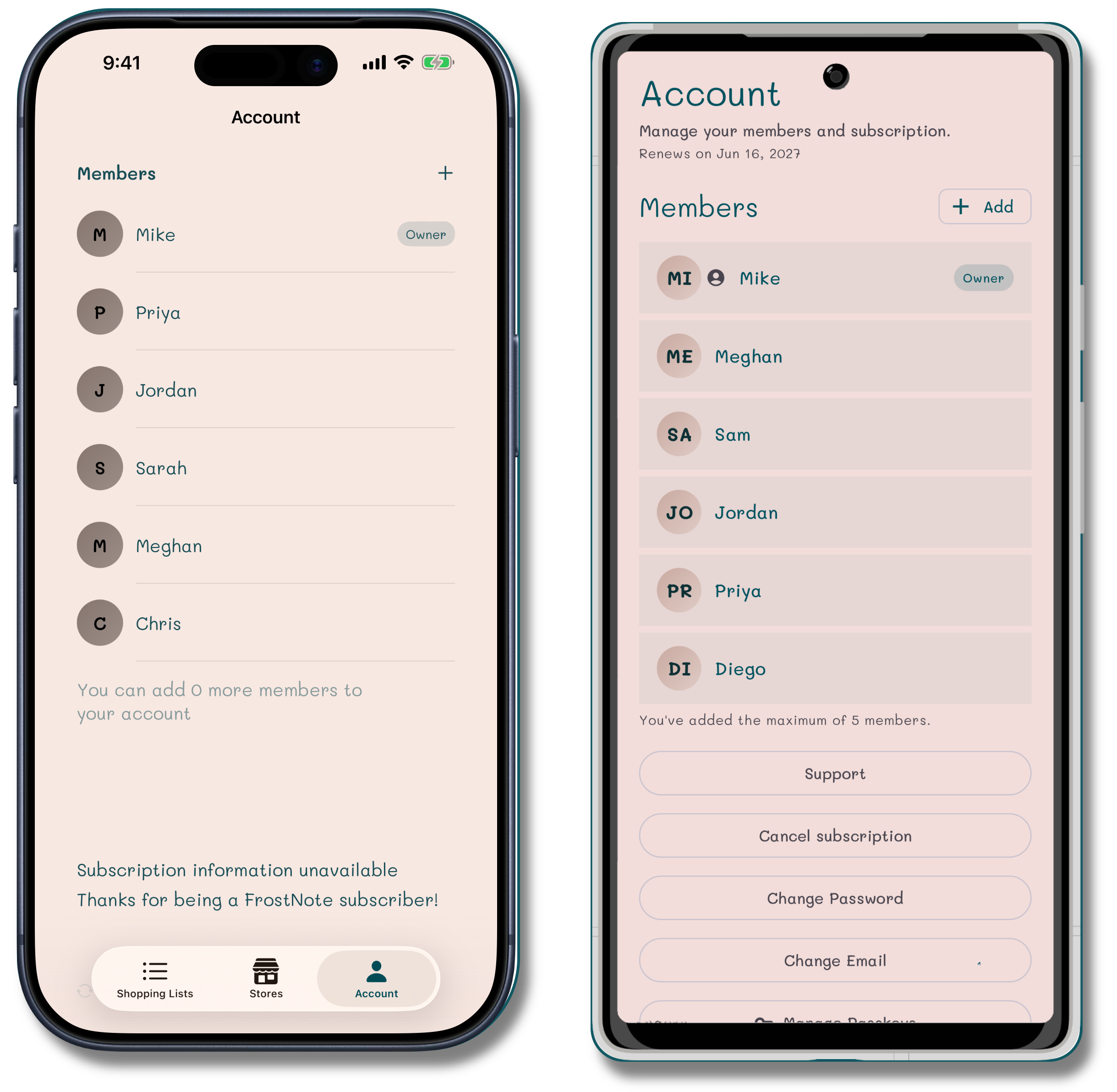
Household members are managed from the Account tab.
How do I invite someone to my household?
From the Account tab, find your household section and tap to generate or share an invite code. The person you’re inviting will enter that code on their welcome screen or from the Account tab.
How do I leave a household?
Go to Account Settings and choose Leave Household. This removes you from the shared lists going forward — it doesn’t delete the household for anyone else. When you leave, you can choose to keep the local copy of your data or delete it.
Plans & Pricing
What’s the difference between Free, Ad-Free, and Premium?
| Free | Ad-Free | Premium | |
|---|---|---|---|
| Price | Free | One-time purchase | Subscription |
| Ads | Yes | No | No |
| Where your data lives | This device only | Your personal cloud account | FrostNote’s servers |
| Syncs across your own devices | No | Yes | Yes |
| Share with household members | No | No | Yes |
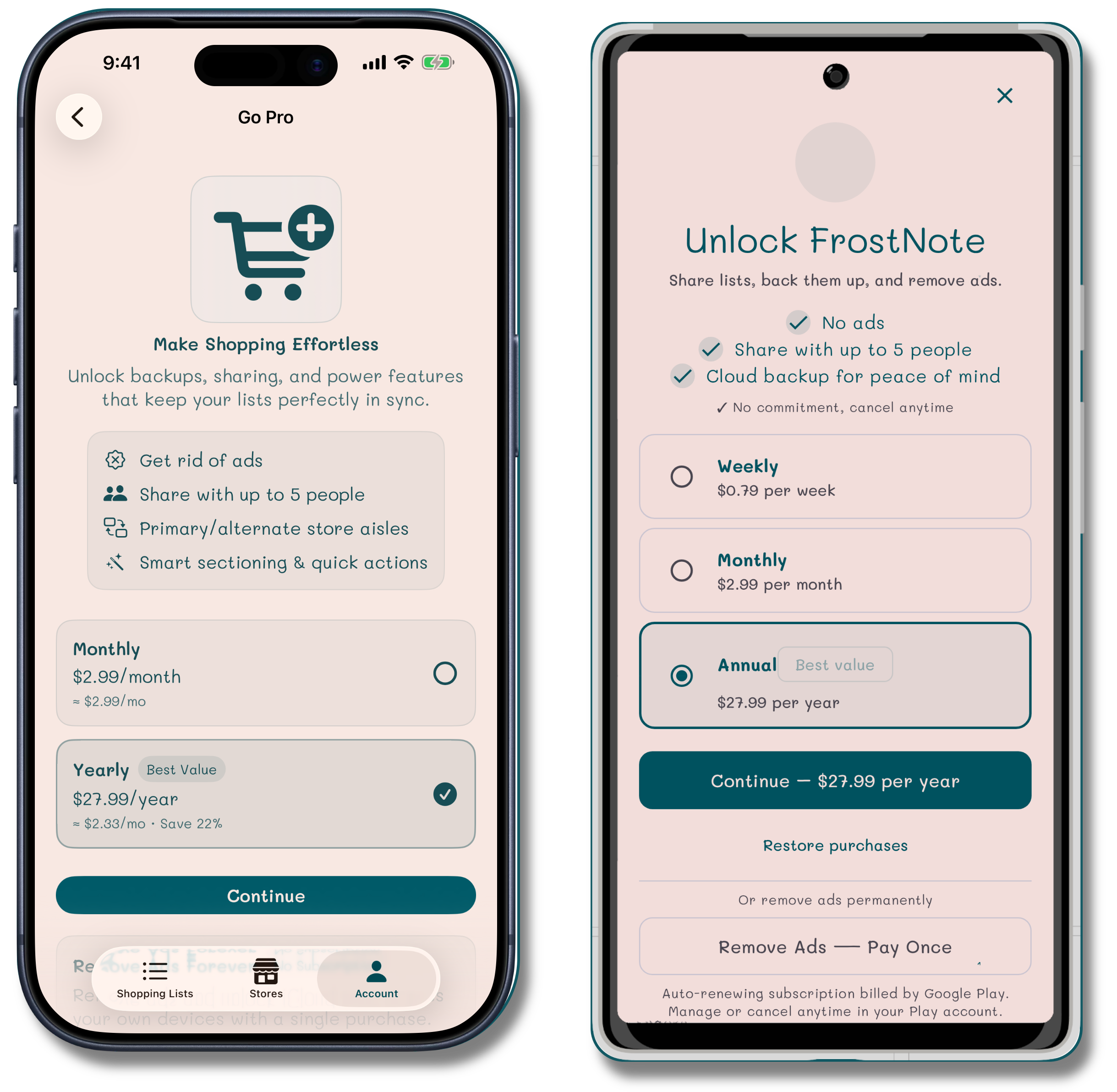
Upgrade options are available from the Account tab.
Does Ad-Free include syncing?
Yes. When you purchase Ad-Free, your data moves into your personal cloud account (iCloud on Apple devices, your Google account on Android) and syncs automatically across all your devices signed into that same account. It doesn’t include sharing with other people — that’s what Premium is for.
Do I need Premium to share lists with my family?
Yes. Real-time household sharing — where multiple people can see and edit the same lists — requires a Premium subscription.
How do I upgrade?
Open the Account tab and tap Upgrade to see your options. Your existing lists and stores move over automatically — you won’t lose any data when you change tiers.
How do I cancel my Premium subscription?
Subscriptions are managed through your Apple or Google account, just like any other App Store or Google Play subscription.
- On iPhone/iPad/Mac: Settings → [your name] → Subscriptions
- On Android: Google Play app → Profile → Payments & subscriptions → Subscriptions
Canceling stops future billing. You keep Premium features until the end of your current billing period.
I canceled — will I lose my lists?
No. When your Premium subscription ends, you’ll be signed out and given the choice to keep or delete your local copy of your data. You’ll return to the behavior of your previous tier — Free (with ads, data on one device) or Ad-Free (if you purchased that before subscribing).
Can I restore a purchase I already made?
Yes. The Ad-Free purchase is tied to your Apple or Google ID and restores automatically when you sign in to your Apple or Google account on a new device. For Premium subscriptions, sign into your FrostNote account and your data will download.
How do I get a refund?
Purchases made through the App Store or Google Play are handled by Apple and Google respectively — FrostNote isn’t able to process refunds directly.
- App Store refunds: reportaproblem.apple.com
- Google Play refunds: support.google.com/googleplay/answer/2479637
Ads
Why am I seeing ads?
Ads support the Free tier. They’re served via Google AdMob and appear as banner ads while you’re using the app.
How do I remove ads?
You can remove ads by purchasing Ad-Free (a one-time purchase) or subscribing to Premium. Both options are available from the Account tab. See Plans & Pricing for what each includes.
Can I turn off ads without paying?
No — ad removal is tied to the paid tiers above.
Data & Privacy
Where is my data stored?
It depends on your tier:
- Free / Try it out: Data lives on your device only.
- Ad-Free: Data is stored in your personal cloud account (iCloud on Apple, Google account on Android).
- Premium: Data is stored on FrostNote’s servers so it can be shared with your household in real time.
What happens to my data if I delete my account?
You can choose to delete your account immediately, or — if you’re on an active subscription — schedule deletion for the end of your current billing period so you’re not cut off mid-cycle you’ve already paid for. Deletion removes your account and associated data in accordance with our privacy policy.
We do keep either the identifier Apple or Google sent us or a one-way encrypted copy of your email address with the date you deleted your account so we can remind you the account was deleted if you sign in later. None of this data can be used to identify you.
How do I delete my account?
Go to Account Settings → Delete Account. You’ll be asked to confirm and to choose between immediate deletion or deletion at the end of your current subscription term.
If you are the subscription owner all members of your household will also lose sharing when your account is deleted. They will be able to keep a local copy of the data they already have it they want and can start their own subscription with that data.
How do I sign out?
Go to Account Settings → Sign Out. You can sign out of just the current device, or sign out of all devices at once — handy if you’ve lost a device or changed your password.
Troubleshooting
My lists aren’t syncing between my devices.
A few things to check:
- You’re on Ad-Free or Premium — syncing isn’t available in local/Try it out mode or on the Free tier.
- Both devices have an internet connection.
- Both devices are signed into the same FrostNote household for Premium. Or, both devices are signed into the same Apple or Google account with cloud services (iCloud or Google Drive) turned on.
If all three are true and syncing still isn’t working, contact us.
I invited someone to my household but they can’t see the shared lists.
Two things to check:
- They’ve accepted the invite and are signed into the account they used to accept it.
- The list is shared with them — lists are private by default. Go to the list’s settings and make sure it’s shared with the right household members.
A Passkey isn’t working on a new device.
Passkeys sync through iCloud Keychain (on Apple) or your Google account (on Android) across devices signed into the same Apple or Google ID with Keychain enabled. If you’re on a different Apple or Google ID, or Keychain is disabled, you’ll need to use another sign-in method first, then add a new Passkey from that device once you’re signed in.
Still need help?
If you didn’t find what you were looking for, we’d love to hear from you. Reach out via the Contact page and we’ll get back to you as soon as we can.
For billing and refund issues, please contact Apple or Google directly — they handle all purchase transactions.
- App Store: reportaproblem.apple.com
- Google Play: support.google.com/googleplay/answer/2479637


